Single board computer projects
Raspberry Pi tips and tricks
last updated: 2021-10-18
Quick links
- Create µSD-card
- Get SSH and WIFI working before first boot
- Raspbian with Desktop
- Install (newest) Arduino IDE and Teensyloader on Raspi
- Prevent Raspi dropping WiFi
- Raspbian lite
- Use Adafruit PITFT
- Using exclusively 5GHz WLAN on new Raspi 3 B+
- Mounting a NAS folder on Raspi (NFS)
- Prevent Raspi dropping WiFi
- Pi shutdown
- Hotttt!
- Spoofing the MAC address
- Interesting Links
Create µSD-card
!New! The Raspberry Pi Imager
https://www.raspberrypi.org/blog/raspberry-pi-imager-imaging-utility/
The Raspberry Pi Imager is open source (https://github.com/raspberrypi/rpi-imager) and facilitates the creation of the µSD card. Install it on Linux with:
sudo apt install rpi-imager
It is quite self explaining. Even Libreelec (Kodi) or octopi can be installed immediately.
But the best is the magic key Ctrl + Shift + x.
In the advanced menu we can enable ssh, set the raspi and Wifi password and the locales. (don't forget to scroll!).
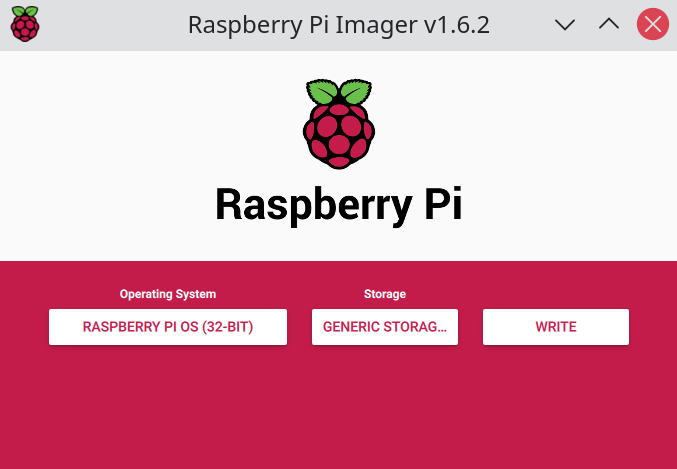
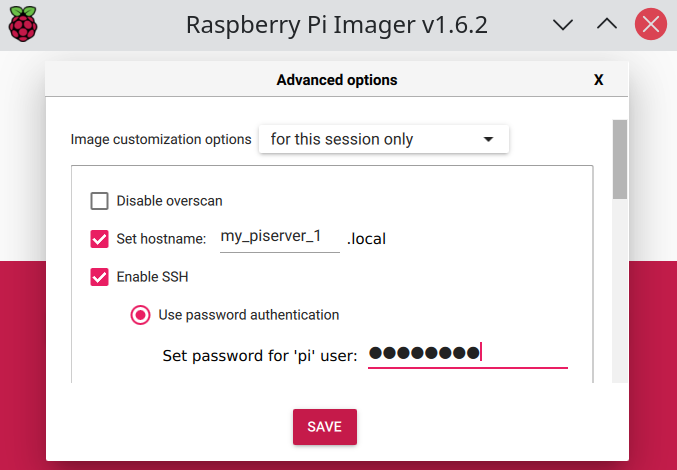
Get SSH and WIFI working before first boot
This is only needed if you don't use the Raspi imager!
As of the November 2016 release, Raspbian (now Raspi OS) has the SSH server disabled by default. It can be enabled by placing an empty file named ssh, without any extension, onto the boot partition of the SD card.
For this insert the newly written SD-card into your PC and mount the boot partition (FAT32). Now create an empty text-file with the name ssh (no extension).
Next create a text-file with the name wpa-supplicant.conf and add the following text to the file (the country line is optional):
country=LU
ctrl_interface=DIR=/var/run/wpa_supplicant GROUP=netdev
update_config=1
network={
  ssid="mySSID"
  psk="myPassword"
}
As the password is stored in clear text it is a better idea to use the tool wpa_passphrase to generate a pre-encrypted 32 byte hexadecimal number.
wpa_passphrase mySSID myPassword
creates the following Output:
network={
        ssid="mySSID"
        #psk="myPassword"
        psk=91fa3d0528b7a0f57cf69f62d2ded92f26479f5948e35c3309961bade47459c4
}
Delete the line with # and copy the text to your wpa-supplicant.conf.
For more info on login with ssh look further down.
Raspbian with Desktop
The new Raspbian with desktop is easy to use. The filesystem of your SD-card is automatically expanded during the first boot. The system starts without login or password request.
With HDMI Monitor, USB mouse and USB keyboard you have a full desktop PC and it is simple to configure your Raspi by desktop means.
Configuring Raspi by desktop means
To enable your Wifi, click the icon right to the bluetooth sign. Choose your hotspot (SSID) and type the pre shared key (this settings will be automatically written to your wpa_supplicant file).
Click the start menu (a raspberry :)) and then: Menu ⇨ Preferences ⇨ Raspberry Pi Configuration.
To set your keyboard , time zone an localisation settings click on Localisation:
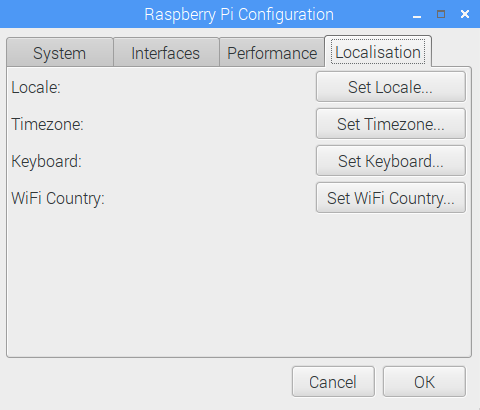
To enable interfaces (1-wire, I2C, serial) click on Interfaces:
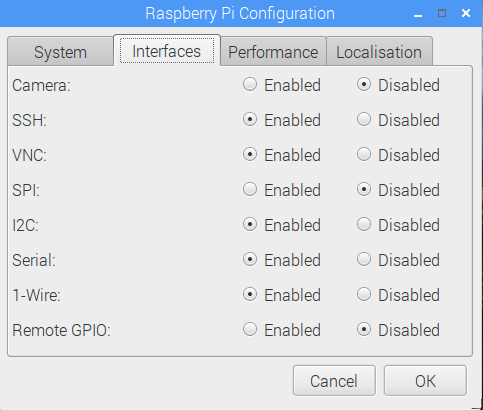
Here it is also possible to enable VNC to use your Raspi remotely.
Use Raspi remotely with VNC
We enable VNC in Menu ⇨ Preferences ⇨ Raspberry Pi Configuration ⇨ Interfaces From now on, VNC server will start automatically at boot. If we have no static IP address, get your Raspi's private IP address by clicking the VNC icon on your menu bar.
Download VNC Viewer on https://www.realvnc.com/raspberrypi and run it on your device. Now you can take control of your Raspi, as if you were sitting in front of it.
If you want to connect over the internet, you will need to configure your firewall to enable VNC, and port forward your router to your Raspi's IP address.
Add a static IP address
It is simpler to know Raspi's IP address, so we set it static. We can do this in the GUI, on the command line or even before inserting the SD card in the Raspi if we use Linux or a Windows with software to mount the ext4 file system.
Ethernet and WiFi have to get both different IP addresses if used together (also the MAC addresses are different!)!
GUI
Right click on the WiFi Icon in the bottom right corner. We get a menu item called Wireless & Wired Network Settings. Enter the IP address and the default Gateway (Router). As most router also work as DNS server, add the same IP for DNS Servers.

/savit/www.weigu/tutorials/sensors2bus/05buses/png/raspiguifixip_350.png
The infos on the static IP address are saved in a file in the /etc folder called /dhcpcd.conf.
Command line
Call the midnight commander sudo mc and open the file dhcpcd.conf in the /etc folder. Press F4 to open the nano text editor and uncomment the following lines in /etc/dhcpcd.conf. Change the IP addresses to your needs (alternatively use sudo nano /etc/dhcpcd.conf).
    # Custom static IP address for eth0.
    interface eth0
    static ip_address=192.168.1.67
    static routers=192.168.1.1
    static domain_name_servers=192.168.1.1

    # Custom static IP address for wlan0.
    interface wlan0
    static ip_address=192.168.1.69
    static routers=192.168.1.1
    static domain_name_servers=192.168.1.1
Save the file with Ctrl-O, exit with Ctrl-X , exit mc with F10 and reboot (sudo reboot). Now we can log in with the new IP.
If we can mount the SD card on our PC, we can also add the infos to /etc/dhcpcd.conf before powering up the Raspi.
Update and upgrade
To get the latest versions of all programs, open the terminal window (4th icon in menu bar) and type:
    sudo apt update
    sudo apt upgrade
    sudo apt dist-upgrade
It is a good idea to install the terminal file manager "midnight commander (mc)
to search and edit files as root in terminal (sudo mc) and htop to look at processes.
sudo apt install mc htop
Log in with SSH
As of the November 2016 release, Raspbian has the SSH server disabled by default. It can be enabled by placing an empty file named ssh, without any extension, onto the boot partition of the SD card. For more information look at this link.
If you don't know the IP address of the Raspi, use nmap. On your PC type:
sudo nmap -sP 192.168.1.*
If nmap is not installed:
sudo apt install nmap
Look for the IP address of your Raspi (ex.: 192.168.1.125) and log in with ssh (putty on windows):
sudo ssh pi@192.168.1.125
Python 3
Python3 is already installed. Use idle3 by clicking Menu ⇨ Programming
⇨ Python 3 (IDLE). CTRL+N opens a new file to type your code. Execute
the code with F5.
Setting up the webserver Lighttpd with cgi
Lighttpd is an efficienct high performance webserver. It has a small memory footprint and an effective management of the cpu-load compared to other web-servers.
    sudo apt update
    sudo apt upgrade
    sudo apt install lighttpd
Test if the webserver is running by typing the ip address of your Raspi in the url field of your browser.
The html files are in in /var/www/html.
Make the cgi-bin directory /var/www/cgi-bin. After this we will edit the
lighttpd config file.
    sudo mkdir /var/www/cgi-bin
    sudo nano /etc/lighttpd/lighttpd.conf
Add the following lines to the config file:
    server.modules += ( "mod_cgi" )
    alias.url += ( "/cgi-bin/" => "/var/www/cgi-bin/" )
    $HTTP["url"] =~ "/cgi-bin/" {
            cgi.assign = (
                  ".py" => "/usr/bin/python",
             )
    }
We have to change the owner of the web directories to pi and reload the server:
    sudo chown -R pi.pi /var/www
    sudo service lighttpd force-reload
Now we can create our cgi python script (ex.: my1cgi.py). It has to be
executable, so we change this with chmod:
chmod 711 /var/www/cgi-bin/my1cgi.py
If we need php:
sudo apt-get install php5-common php5-cgi php5
Don't change the order of the packages to install or Apache will be installed. If we need a database:
sudo apt-get install mysql-server php5-mysql
Adding a cron job at restart
If you want to start a python script automatically at reboot, add the following line to your /etc/crontab file.
@reboot pi python3 /home/myname/myscript.py >> /home/myname/myscript_log.txt 2>&1
The output of the python script is redirected to a text-file, for debugging. To log the cron jobs uncomment cron in the file /etc/rsyslog.conf. You will find the log file in /var/log/cron.log.
Install (newest) Arduino IDE and Teensyloader on Raspi
Run these commands in terminal to update your Raspi and to make a folder named "arduino" in your home directory:
    sudo apt update
    sudo apt upgrade
    sudo apt dist-upgrade
    mkdir ~/arduino
Download the newest Arduino version (Linux ARM version!!) on [arduino.cc]( Download the newest Teensyduino version (ARM version!!) on pjrc.com. Make the file executable and run it. Choose the right directory with your arduino (ex. ~/arduino/arduino-1.8.4). To set up the udev rules (so you have not to be root to use your Teensy), use this file: udev rules and copy it to My Pi became randomly inaccessible over WiFi. In /var/log/syslog I found: Command to read the current power saving mode (Stretch): Command to power_save off: To make this permanent add the following line to If you have an HDMI Monitor, a USB mouse and USB keyboard it is possible to login
without network connection and configure your Raspi.
If not, use a wired network connection; get the IP adress with The login is Raspbian has a cool tool to change settings. Type Click on " When you do not use an english keyboard use Click on " In a network with more than one Raspi it is good to change the hostname (" If all this is done, it is a good time to reboot (Bob: "reboot tut gut!): The new Raspi3 has Wifi on board, so we need to activate it to gain wireless network
access. Add the following lines with the ssid of your access point and your password to
the file: Save with As the password is stored in clear text it is a better idea to use the tool creates the following Output: Delete the line with Now it's time to find the IP address of the Raspi. On your PC type: If nmap is not installed: Look for the IP address of your Raspi (ex.: 192.168.1.125) and log in with ssh
(putty on windows): Get the latest versions of all programs: A really cool program can very easily be used to browse and edit your Raspi files.
Install and launch it with: To get a static IP adress is very easy in Jessie. Use the editor Use Save with If you want to start a python script automatically at reboot, add the following line to your The output of the python script is redirected to a text-file, for debugging. To log the cron jobs uncomment To synchronize two folder over ssh with password, use rsync (!source no /, target with /): This is for different TFT-displays from Adafruit (e.g. 3.5" 480x320). The helper script does all the work: I had to chose 270 degrees (landscape) for the display to be oriented the right way.Say NO to "Would you like the console to appear on the PiTFT display?"
and then YES to "Would you like the HDMI display to mirror to the PiTFT display?". To calibrate the screen manually: Next you can run the following command which will let you draw-test the touch screen. Go back and re-calibrate if you feel the screen isn't precise enough!: Using my Raspi as Bluetooth extender for my radio (Bluehemian Raspberry, c't 11/2018 page 132) didn't work. The play back was stuttering. Apparently it is not possible to use Bluetooth + WLAN (2,4GHz) on Raspi3 at the same time. An external USB WLAN or Bluetooth Stick may help. Instead I used a new Raspi3 B+ with 5GHz WLAN. To force the 5GHz WLAN I had to add a line (freq_list) to my First I had to enable NFS on my Synology NAS. This is done by checking the boxes To mount the shared folder via NFS install The You should see an output like To mount the shared folder: I had problems mounting my NAS folder with fstab on the Raspi. Finally I used rc.local (/etc) to do this. The following code had to be added before the exit 0 line: My Pi became randomly inaccessible over WiFi. In /var/log/syslog I found: Command to read the current power saving mode (Stretch): Command to power_save off: To make this permanent add the following line to I added a bush-button (Pin 40 (GPIO21) to Ground) to my pitoucon. When the button is pressed for less than 3 seconds, my Pi reboots. If pressed for more than 3 seconds it shuts down. The code is on github.com/gilyes/pi-shutdown. Pay attention, because the code uses the pin numbering (board) and not the GPIO numbering. If you use pin 5 (GPIO3) and it is pressed while shut down, the Pi restarts. This is not possible with pin 40. If RPi lib is not installed, do this with: I added the following line to The new Raspi4 gets quite hot. Better use a fan (not to big so the surrounding components are not an obstacle). To control the temperature and test if it gets too hot (what reduces the clock frequency of 1500 MHz) start this line in a second terminal: Now let your Raspi work (idle the clock is only 600 MHz). Spoofing the MAC address can be necessary to preserve your privacy or to if you want to use a new Raspberry Pi as a replacement for an older one in a net. Add the following to the line in and reboot. cd ~/arduino/arduino-1.8.4
sudo ./install.sh
/etc/udev/rules.d. Restart your Raspi ()sudo reboot).Prevent Raspi dropping WiFi
{TIMESTAMP} raspberrypi dhcpcd[{PID}]: wlan0: carrier lost
It turned out the problem was that the Pi WiFi controller has power_save on by default. sudo iw wlan0 get power_save
sudo iw wlan0 set power_save off
/etc/rc.local:/sbin/iw dev wlan0 set power_save off
Raspbian lite
nmap and
connect with ssh to your Raspi (see "Log in with SSH").
After setting up Wifi (see "Set up Wifi") you may disconnect the wired connection.pi, the password is raspberry (with a german keyboard the
password is raspberrz :)).Raspi-config
sudo raspi-config
Expand the filesystem
1 Expand Filesystem" to use later all the space from your SD-card.Change the keyboard layout and the timezone
sudo raspi-config and click on
"4 Internationalisation Options". With "I3" you can adjust the keyboard layout.
It is a good idea to use "I2" to chose the right time zone. The locale per
default is 'en_GB.UTF-8 UTF-8'. If you want to change your locale you may do
this under "I1".Enable I2C, Serial and 1-Wire
Advanced Options" to get access to "A7", "A8" and "AA".Hostname and password
Advanced Options", "A1").
The password can be changed under "Change User Password". To update raspi-config look under
"Advanced Options", last point "A0". sudo reboot
Set up Wifi
    cd /etc/wpa_suplicant
    sudo nano wpa_supplicant.conf
    network={
        ssid="mySSID"
        psk="myPassword"
    }
CTRL+O and exit with CTRL+X.wpa_passphrase to generate a pre-encrypted 32 byte hexadecimal number. wpa_passphrase mySSID myPassword
network={
        ssid="mySSID"
        #psk="myPassword"
        psk=91fa3d0528b7a0f57cf69f62d2ded92f26479f5948e35c3309961bade47459c4
}
# and copy the text to your wpa-supplicant.conf.Log in with SSH
sudo nmap -sP 192.168.1.*
sudo apt install nmap
sudo ssh pi@192.168.1.125
Update and upgrade
    sudo apt update
    sudo apt upgrade
    sudo apt dist-upgrade
Midnight commander
    sudo apt install mc
    sudo mc
Static IP address
nano to
append the following to the file /etc/dhcpcd.conf. # Custom static IP address for eth0.
interface eth0
static ip_address=192.168.1.67
static routers=192.168.1.1
static domain_name_servers=192.168.1.1 8.8.8.8
# Custom static IP address for wlan0.
interface wlan0
static ip_address=192.168.1.69
static routers=192.168.1.1
static domain_name_servers=192.168.1.1 8.8.8.8
sudo mc with F4 to edit (2 for nano) or cd /etc
sudo nano dhcpcd.conf
CTRL+O and exit with CTRL+X.Python 3
sudo apt install python3, rpi.gpio
Adding a cron job at restart
/etc/crontab file. @reboot pi python3 /home/myname/myscript.py >> /home/myname/myscript_log.txt 2>&1
cron in the file /etc/rsyslog.conf. You will find the log file in /var/log/cron.log.Synchronizing files with rsync
rsync -avz -e "ssh -p port" /folder1/myfolder username@www.site.lu:/folder1/
Use Adafruit PITFT
    cd ~
    wget https://raw.githubusercontent.com/adafruit/Adafruit-PiTFT-Helper/master/adafruit-pitft-helper2.sh
    chmod +x adafruit-pitft-helper2.sh
   sudo ./adafruit-pitft-helper2.sh
sudo TSLIB_FBDEVICE=/dev/fb1 TSLIB_TSDEVICE=/dev/input/touchscreen ts_calibrate
sudo TSLIB_FBDEVICE=/dev/fb1 TSLIB_TSDEVICE=/dev/input/touchscreen ts_test
Using exclusively 5GHz WLAN on new Raspi 3 B+
wpa_supplicant.conf file in /etc/wpa_supplicant: network={
freq_list=5180 5200 5220 5240 5260 5280 5300 5320
ssid="..."
psk="..."
}
Mounting a NAS folder on Raspi (NFS)
Enable NFS and Enable NFSv4 support in Control Panel - File Services. Now we have to enable NFS for our shared folder (Control Panel - Shared Folder) by clicking on Editand creating an NFS Permission. If you want all hosts on the home network to be able to access the shared folder you can use a wildcard (*) for the Hostname or IP field. The mount path (/volume1/music) is displayed on the bottom left of the screen. Don't forget to grant your users permissions to the shared folder.nfs-common: sudo apt install nfs-common
showmount command helps query the NFS Server (IP address from NAS): showmount -e 192.168.1.xxx
/volume1/music *. sudo mount 192.168.1.xxx:/volume1/music /home/pi/Music
    sleep 30
    mount 192.168.1.xxx:/volume1/music /home/pi/Music
Prevent Raspi dropping WiFi
{TIMESTAMP} raspberrypi dhcpcd[{PID}]: wlan0: carrier lost
It turned out the problem was that the Pi WiFi controller has power_save on by default. sudo iw wlan0 get power_save
sudo iw wlan0 set power_save off
/etc/rc.local (before the exit 0!):/sbin/iw dev wlan0 set power_save off
Pi shutdown
sudo apt install python3-rpi.gpio
/etc/rc.local (before the exit 0!): python3 /home/pi/pishutdown.py &
Hotttt!
while true; do vcgencmd measure_clock arm; vcgencmd measure_temp; sleep 2; done&
Spoofing the MAC address
/boot/cmdline.txt (at the end): smsc95xx.macaddr=xx:xx:xx:xx:xx:xx
Interesting Links
